A first look at Calengaroo for Windows: a desktop calendar with a floating timer
The Calengaroo desktop app is coming to Windows. A floating timer on top of your work, a calendar that fits on the side of your screen, keyboard mode, and screenshots right in your notes.
 7 min read
You start a timer, open your work, and twenty minutes later you can’t remember if the timer is even running. The calendar is three windows deep, behind everything.
The Calengaroo desktop app fixes that. Your timer floats on top of your work, your calendar fits on the side of your screen, and everything you do lands in the right place on your calendar.
A timer that floats on top of your work
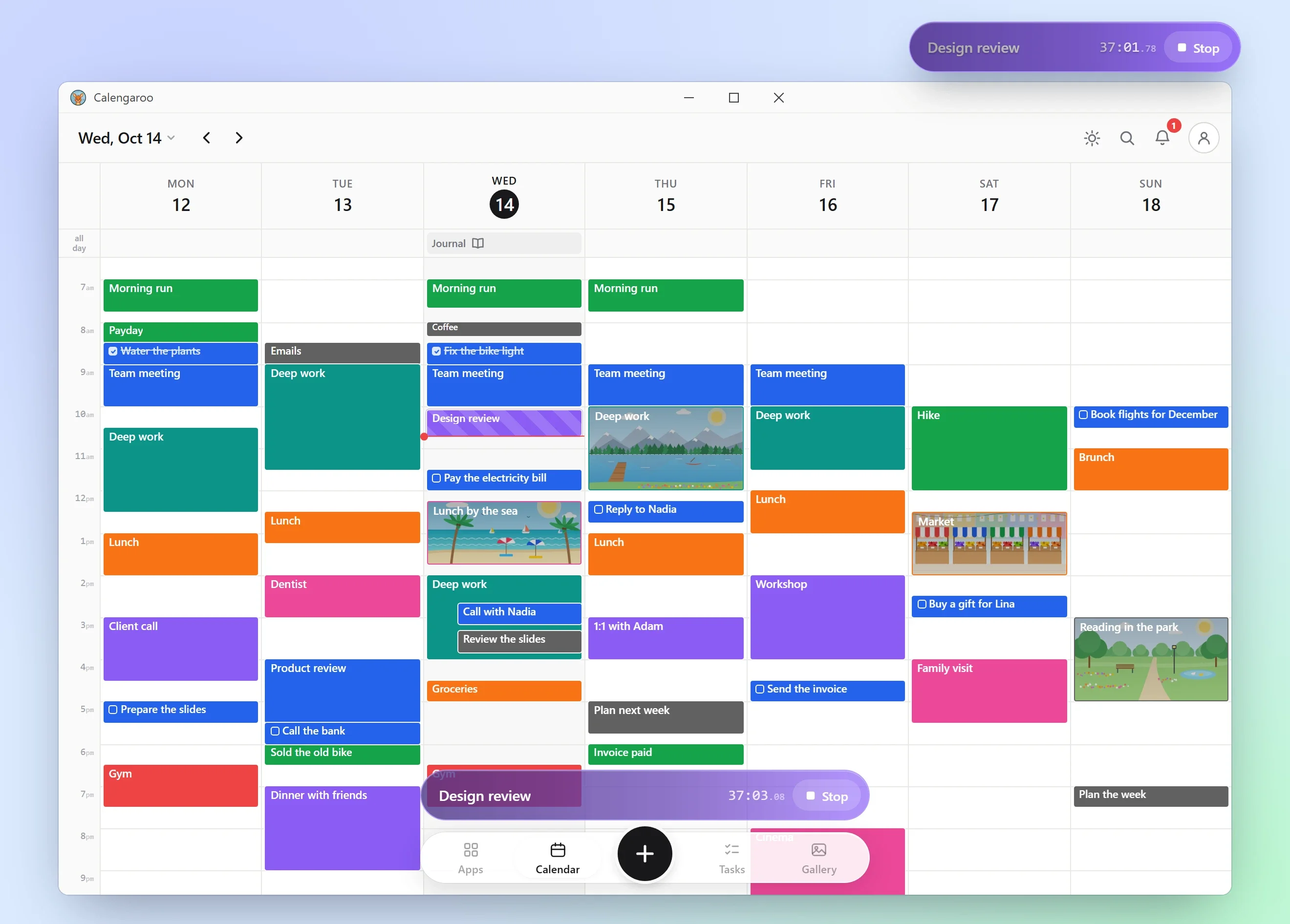
Turn on the floating timer, and a small pill shows the running timer above all your windows. Your browser, your documents, your design tools: it stays on top of all of them.
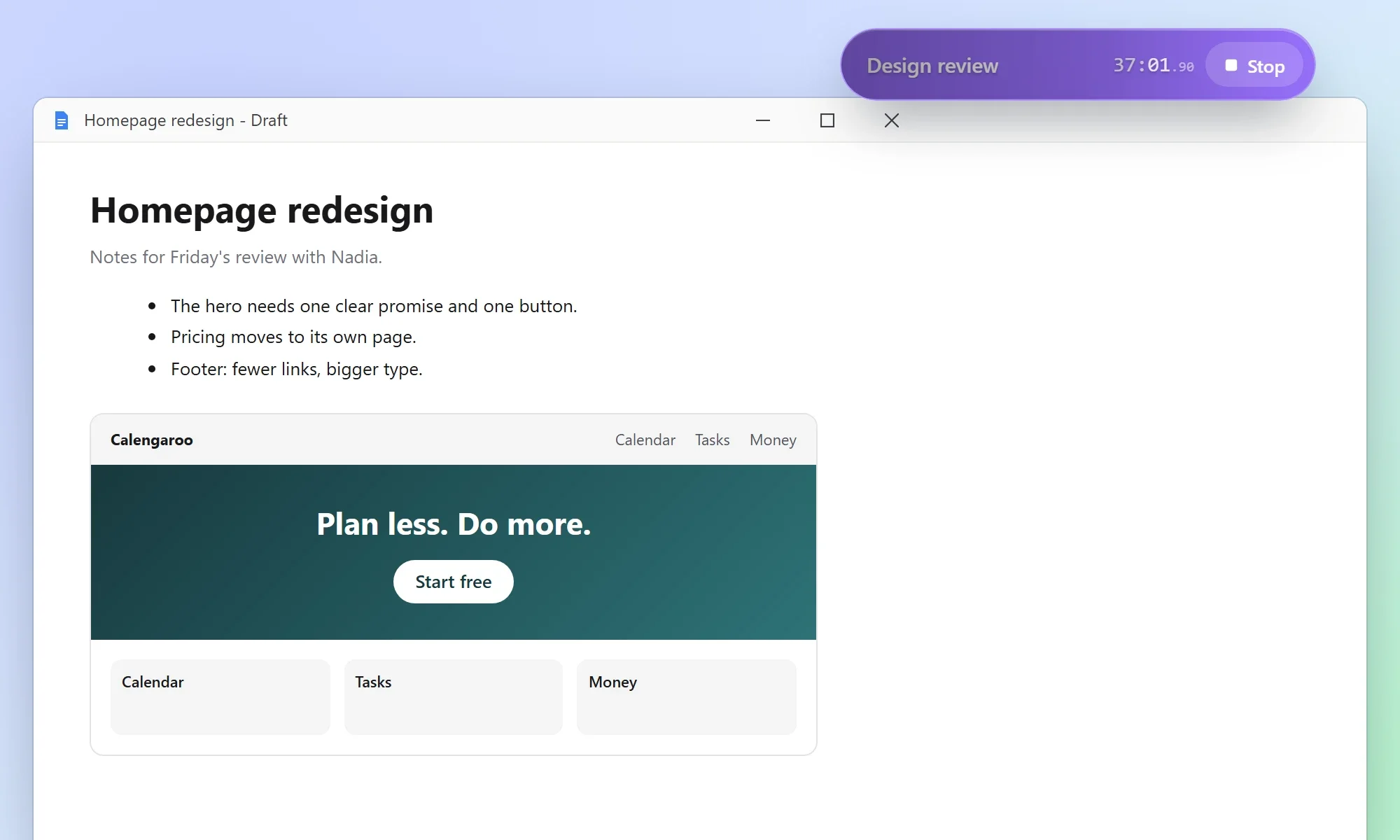
- Drag it anywhere on your screen.
- Click it to open the running activity in the app.
- Right-click it to stop the timer, start one of your recent activities, open the app, or hide the pill.
It can tap you on the shoulder
When you are deep in something, a timer you can’t see is a timer you forget. So the pill can remind you that it is there:
- It can shake in place, or glide to another corner of your screen.
- It can play a sound: Chime, Tick, Marimba, or your own sound. Pick any audio file on your computer and choose the few seconds that play.
- You choose how often, from every minute to every 12 hours.
- It can remind you only while a timer is running, or all the time, so you remember to start one.
Make it narrow, and keep it on the side
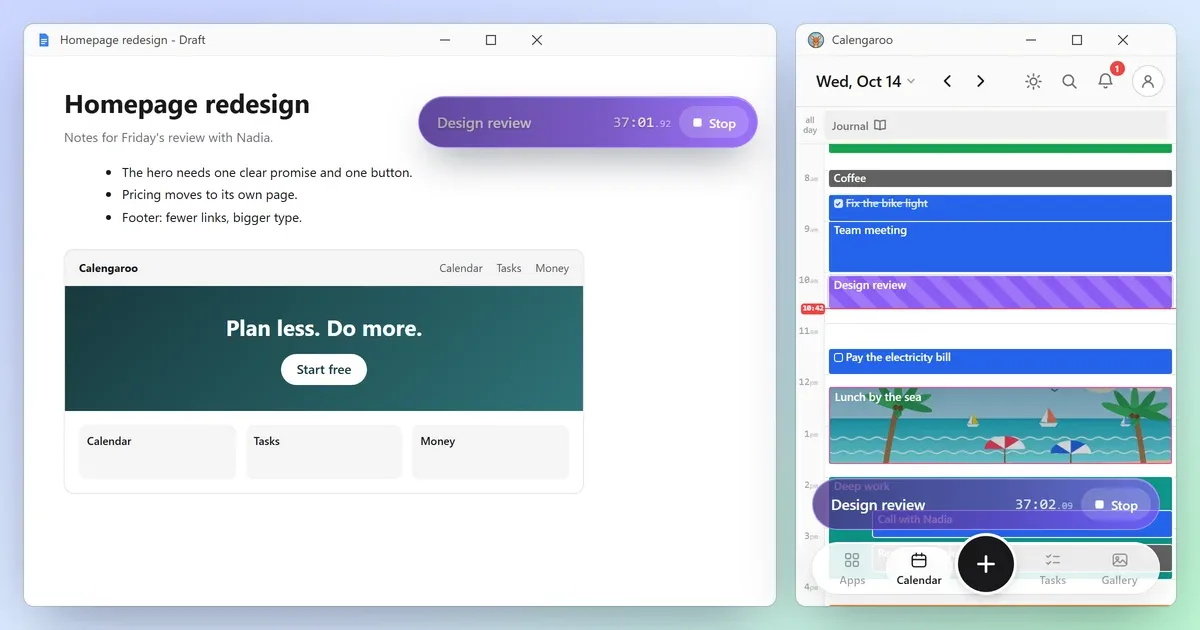
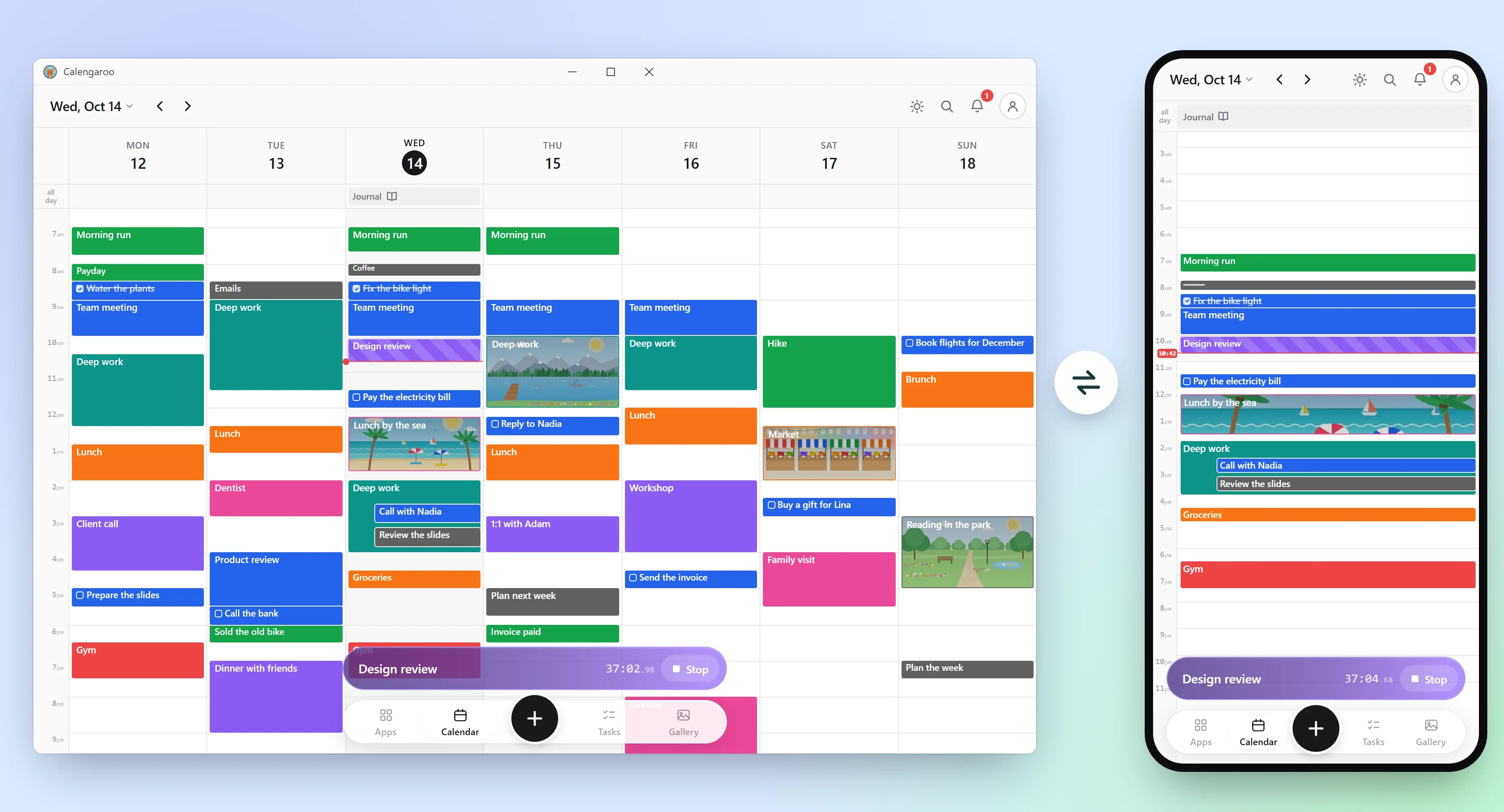
You can make the window as narrow as a phone and put it on the side of your monitor. Your work gets the big part of the screen. Your day stays in view.
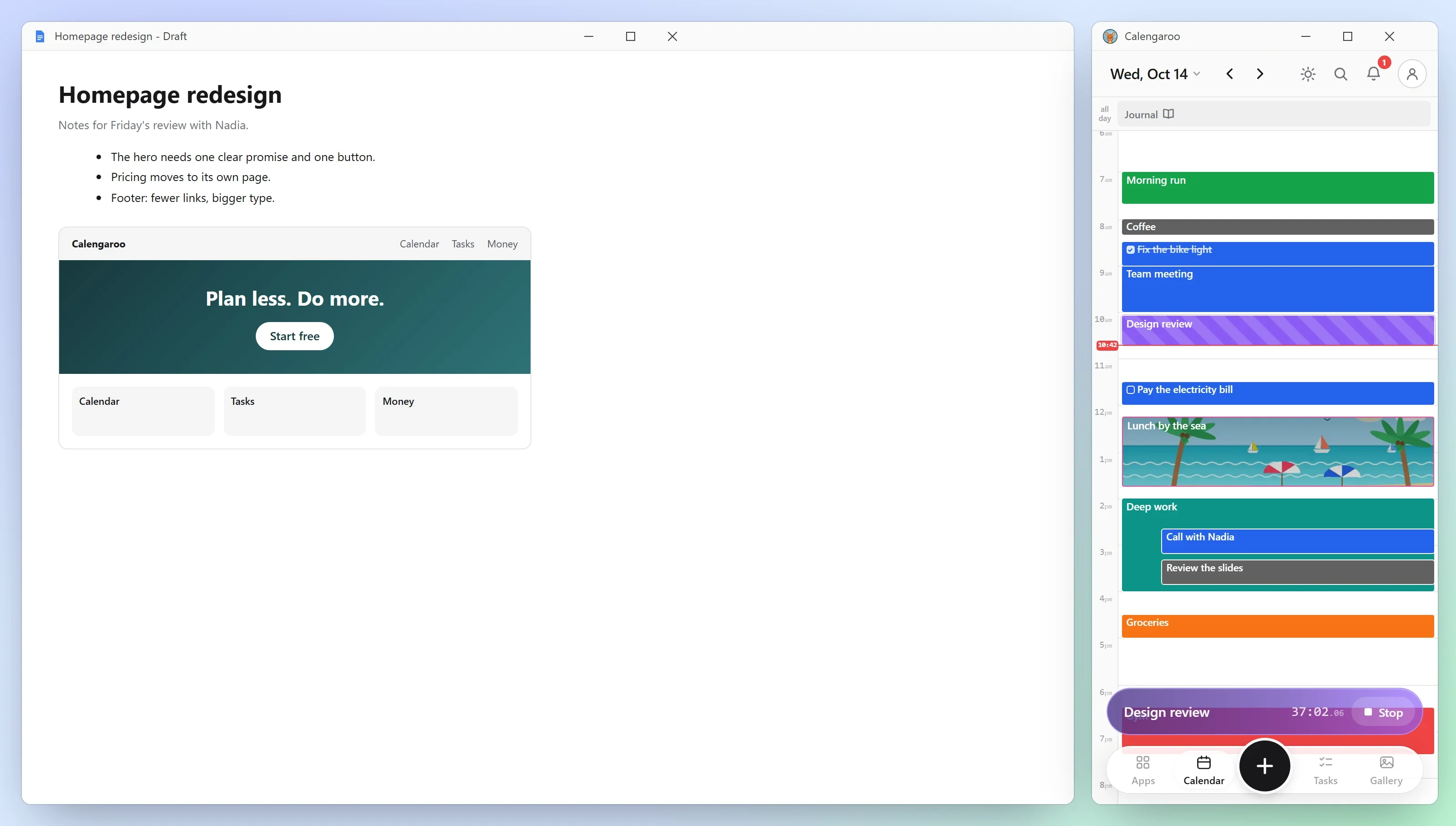
At that width, Calengaroo does not shrink into a sad, squeezed version of itself. It becomes the phone app: the same day view, the same buttons, the same bar at the bottom. It looks good and it works, because it was built to work at that size from day one.
The same app everywhere, so there is nothing to relearn
Many calendar apps look one way on your phone and another way on your computer. The buttons move, the menus change, the same thing is done in two different ways. Each switch means remembering which version you are in.
That remembering costs more than it seems. For people with ADHD, every extra thing to keep in your head is one more thing to juggle, and juggling turns into overwhelm fast.
So Calengaroo is one design, on every screen. The phone app, the web app and the desktop app have the same layout, the same buttons in the same places, and the same gestures. Learn it once, on any device, and you already know it everywhere. Switching from your phone to your computer feels like nothing happened.
That was a choice made at the start, not a side effect, and the whole app is built around it.
Keyboard mode: shortcuts you don’t have to remember
Classic keyboard shortcuts are fast, but only once you know them. Most people never learn more than three, because learning them means a cheat sheet and a lot of memorizing.
Calengaroo has a better way. Press Alt, and a small tag with a letter or two appears on everything you can press: every button, every event, every day.
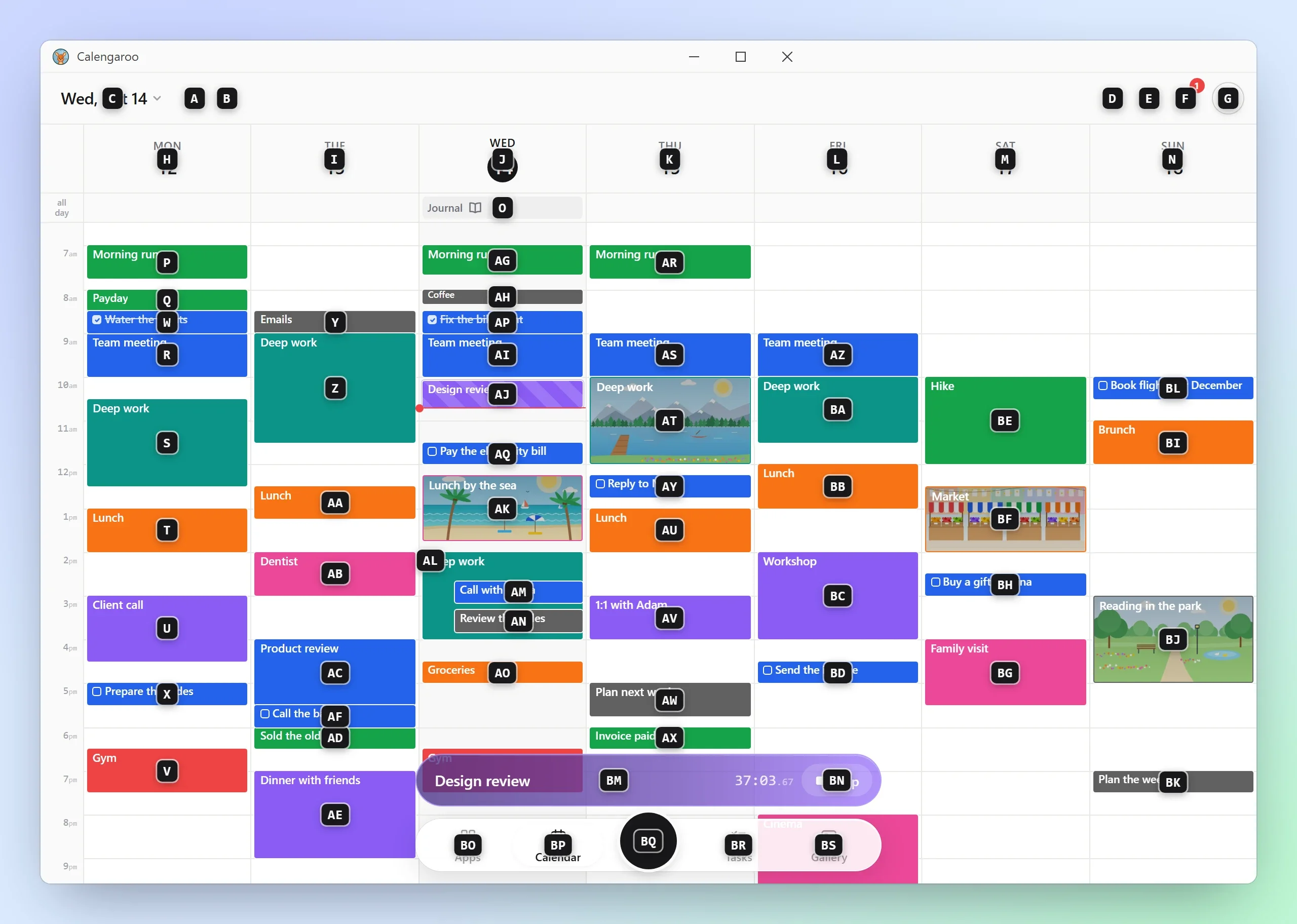
Type those letters, and it’s pressed. That’s it. Nothing to memorize, ever: you look at the screen, you see the letters, you type them. You can run the whole app from the keyboard, even on your first day.
Press Escape, or just click anywhere, to leave keyboard mode. It works in the web app too.
Screenshots, straight into your notes
Every event in Calengaroo has a description, and it’s a real editor: text, checklists, tables, pictures, all in one place. On a computer, the fastest way to add a picture is a screenshot.
Paste a part of your screen
Say you start a timer called “Design review” and open your notes. Nadia sent her mockup, so you grab just that part of your screen with Win + Shift + S, click into the description, and press Ctrl + V. The picture lands in your notes, next to your checklist, and you keep typing.
When the timer stops, all of it stays on that event, on your calendar, at the time you did the work. Next week, you know where to find it.
Or let the app take them for you
Want a record of what you worked on, without thinking about it? Turn on Auto screenshots. While a timer runs, the app saves a picture of your screens into the running event every few minutes (you choose how often).
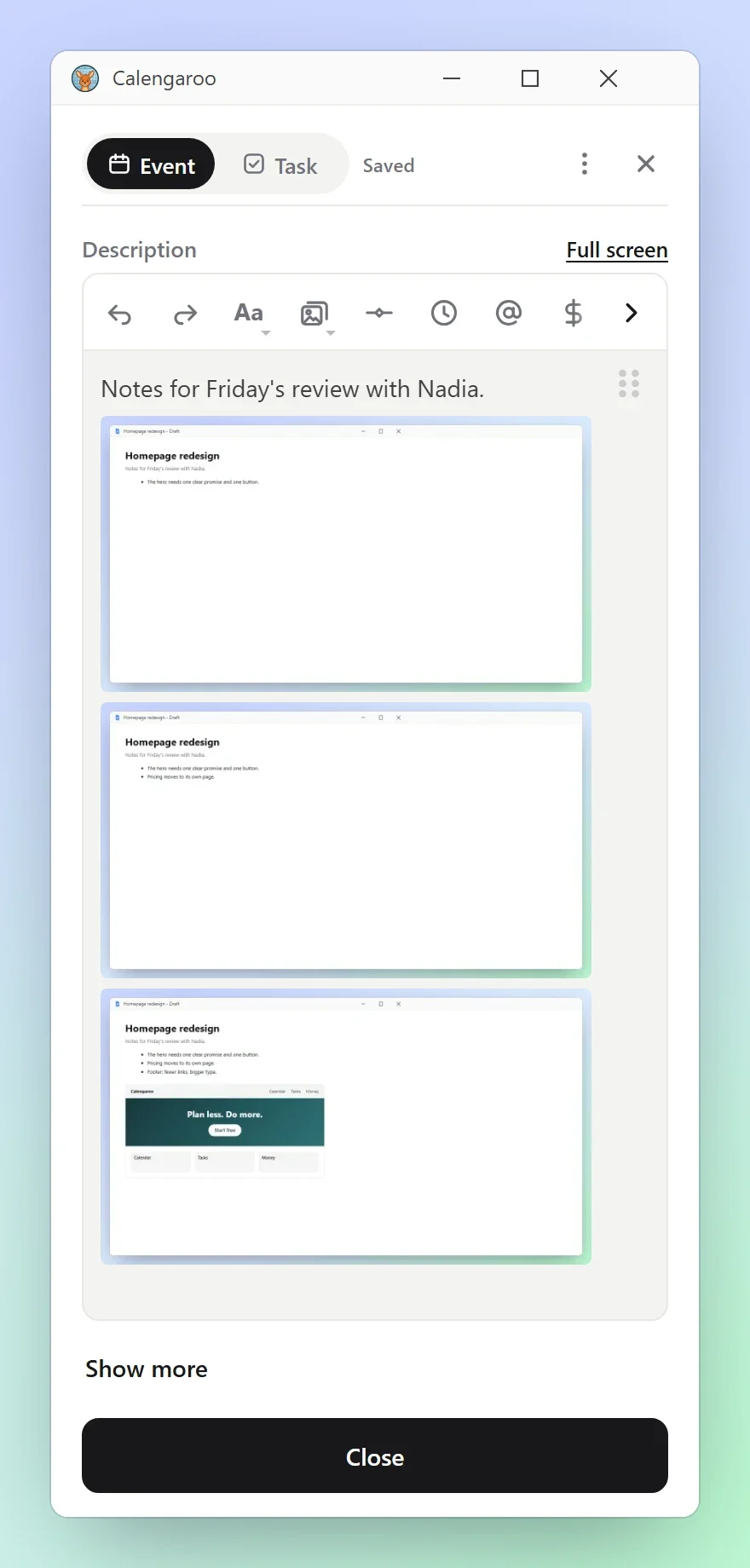
It’s off until you turn it on. It skips the pictures while you are away from the computer. And the pictures stay on your computer, like the rest of your data.
Small things that make it feel at home
- Keep it running in the tray. Closing the window only hides it, so your timer keeps going.
- Start with Windows. Calengaroo opens quietly when you log in, so the floating timer is ready right away.
- It notices when you walk away. If you leave the computer while a timer runs, the app asks what to do with that time when you come back.
- It works offline. Like the rest of Calengaroo, no internet needed.
Coming next: your phone and your computer in sync
Sync is on its way. When it arrives, what you do on your computer will show up on your phone, and what you do on your phone will show up on your computer. Start a timer at your desk, stop it from your phone on the way out.
When can I get it?
The desktop app is in beta. Once it’s released, the Windows download will be on this site’s download section.
In the meantime, use the web app
You don’t have to wait. The web app works on any computer today: Windows, macOS, Linux (Ubuntu and the others) and ChromeOS. All it needs is a modern browser.
You can also install it. It then opens in its own window with its own icon, like any other app, and works offline:
- In Chrome or Edge, click the install button at the right end of the address bar.
- On a Mac with Safari, choose File > Add to Dock.
Keyboard mode, the narrow window and pasting screenshots all work there. The floating timer, the reminders, the tray and auto screenshots need the desktop app.
Tell me what you need
I’m the developer, and I have ADHD too, so I build this for people like us. Many of Calengaroo’s features started as a message from someone using it. If you use your computer all day and something would make it easier, tell me now, while the desktop app is still taking shape. Write to me at sparpouhy@gmail.com. I read and answer every message, and if you’d rather talk, we can set up a call.
Common questions
Is the Calengaroo desktop app out?
Not yet. It’s in beta. When it’s released, you’ll be able to download it from this site.
Which systems will it run on?
The first version of the desktop app is for Windows. On any other computer, macOS, Linux or ChromeOS, the web app works today, and you can install it.
Do I need to learn keyboard shortcuts?
No. Press Alt and every button gets a letter or two. Type what you see. Nothing to remember.
Are auto screenshots on by default?
No. They are off until you turn them on, and they skip the times you are away.
Is it free?
Calengaroo is free to use, and the desktop app is the same Calengaroo.